
Charts Thumbnails Explained
The chart thumbnails give you a quick reference to the chart details.
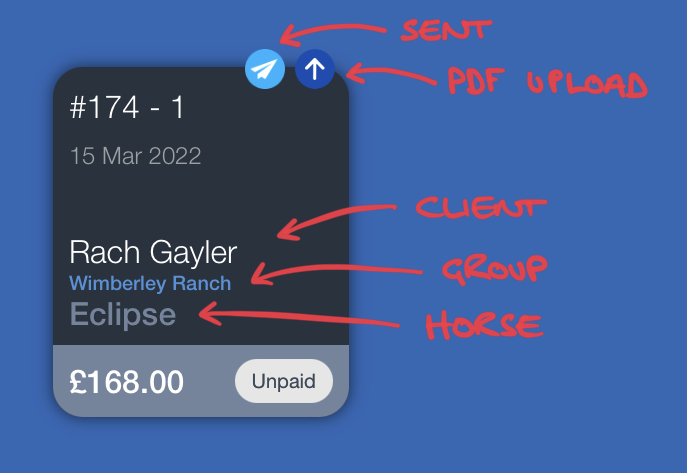
Sent: This light blue icon displays when the chart has been marked to send from the app. The email will be triggered when the app has completed syncing the charts
PDF Upload: Signifies the PDF chart has been uploaded to the storage server.
Chart Number: Multi users accounts will have a post fix number to the chart number indicating the device/user who completed the chart.
Chart Date: Default to the creating date unless edited in the chart process.
Client Name
Client Group: If Client is added to a Group this is displayed here.
Horse Name
Billed total: If added
Paid/Unpaid: Tap to select paid and/or payment type. Custom payment types can be added in the Account Settings
Archive Functions
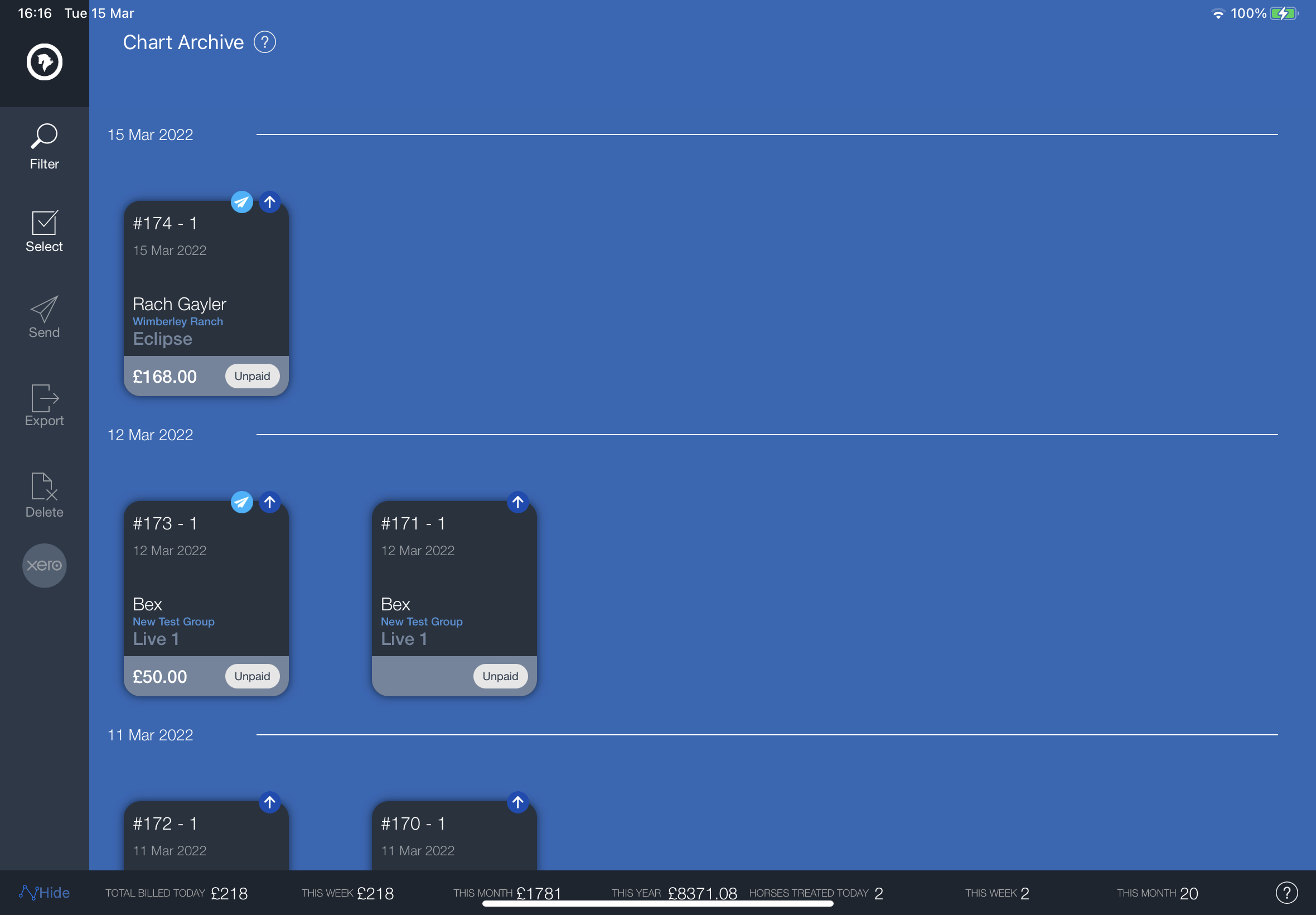
Filter:
Filter the archive view using clients, client groups, horses, chart dates, general search, Paid or Unpaid.
Select Charts:
Select multiple charts to send on one email, or for export, export to Xero.
Send:
After selecting charts tap send send email charts.
Email Address Box: this will be pre-filled with client address is the same for all charts selected.
Group Email: Will add the group email address if enter to the send box.
Include Statement Sheet: Will attach a Statement Sheet PDF to the email listing all the charts and billing totals.
Export:
Select charts to export and tap export. This will send an email with a link to a downloadable zip file containing all the selected charts.
Delete:
Delete selected charts. This cannot be undone.
Stats Bar:
Hide or show the stats bar at the bottom left corner. Offers basic stats for the charts in the chart archive.