
Guide to all new features in this update.
All New Features
1. Hooks, Ramps and Opposing Wear


Added two new sizes (large and small) to the standard hooks and ramp icons. Also included is the opposing wear, in three sizes.
To add these use the hook and ramp tools as normal, just tap to cycle through the options, standard, large, small, wear; standard, large, small and back to standard tooth.
2. Displace the lower jaw

Using the  tool, touch and drag the lower insider jaw view to represent overbite, underbite and parrot mouth.
3. Rotate Premolar and Molars on the Occlusal View

Using the tool, touch and drag the occlusal teeth images. Dragging the tooth up and down the screen will displace the image.
Touch and drag left or right on the screen to rotate the tooth up to 90deg.
4. Fracture Representations

Use the  to display fractures accurately on both the upper and low premolar and molar arcades. Images represent the most common lines of fracture in both upper and lower arcades.

5. Occlusal Incisor View

Tap the green button top right to open the NEW incisor view screen. This includes a complete peer reviewed, occlusal incisor image for all ages between 1-25 years.
A reduced tool bar is available:
Full drawing functions.
Use the protuberant tool  to remove a tooth.
tool to tap and displace a tooth image in any direction.
 tool to tap and drag left or right to rotate any tooth image.
Diastema, cap, ulceration and tartar tools all available as normal.
6. Last dental treatment and clinical history data
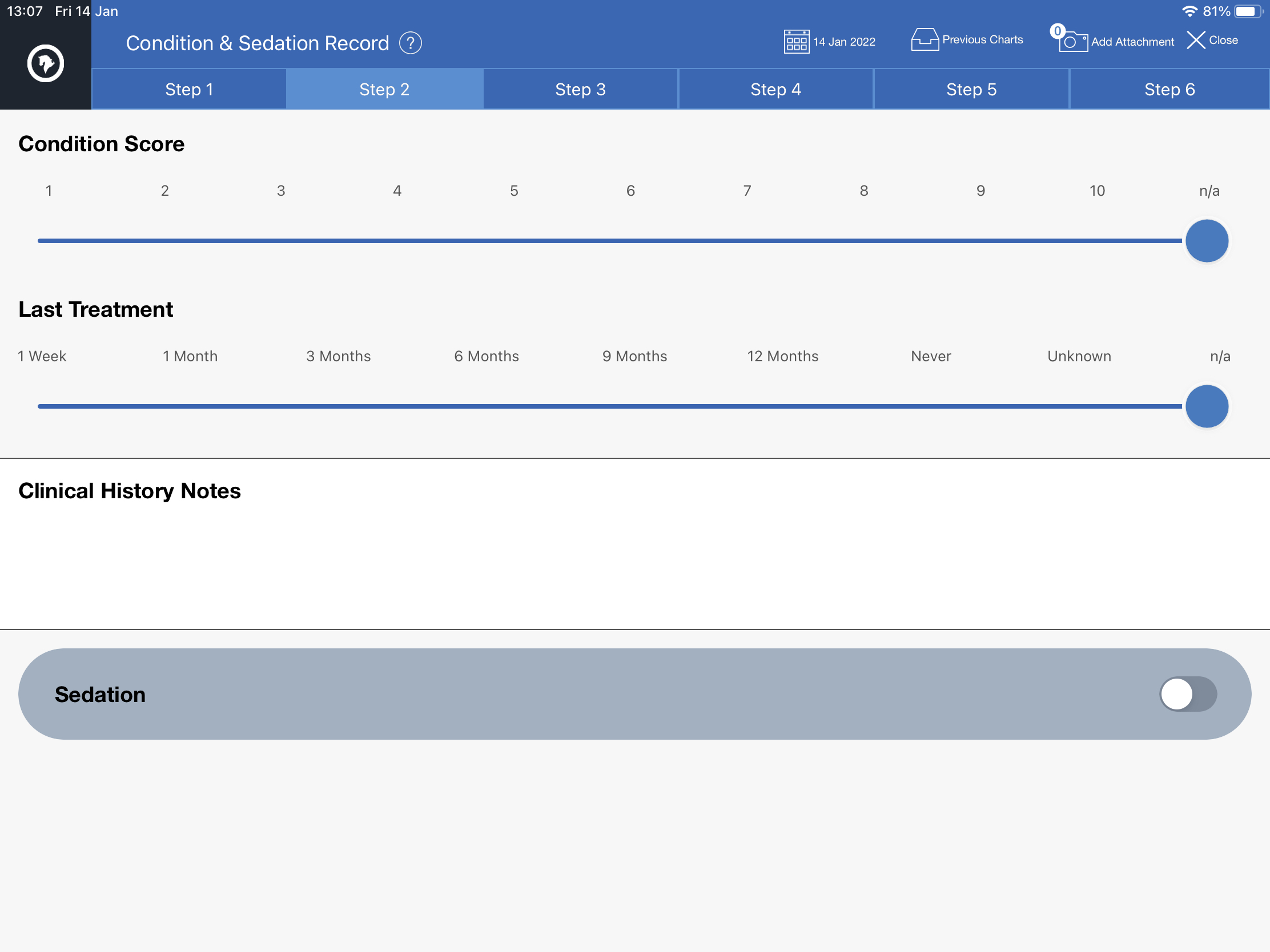
Step 2 now includes extra clinical history field entry as well as a last treatment slider. When a horse has previously been treated within your Pimbury Dental account, the previously treated slider is not show, and the previous chart date is automatically added to the chart.
Note: iPad charts created before version 2.0 will show last treatment as n/a
7. Client Groups
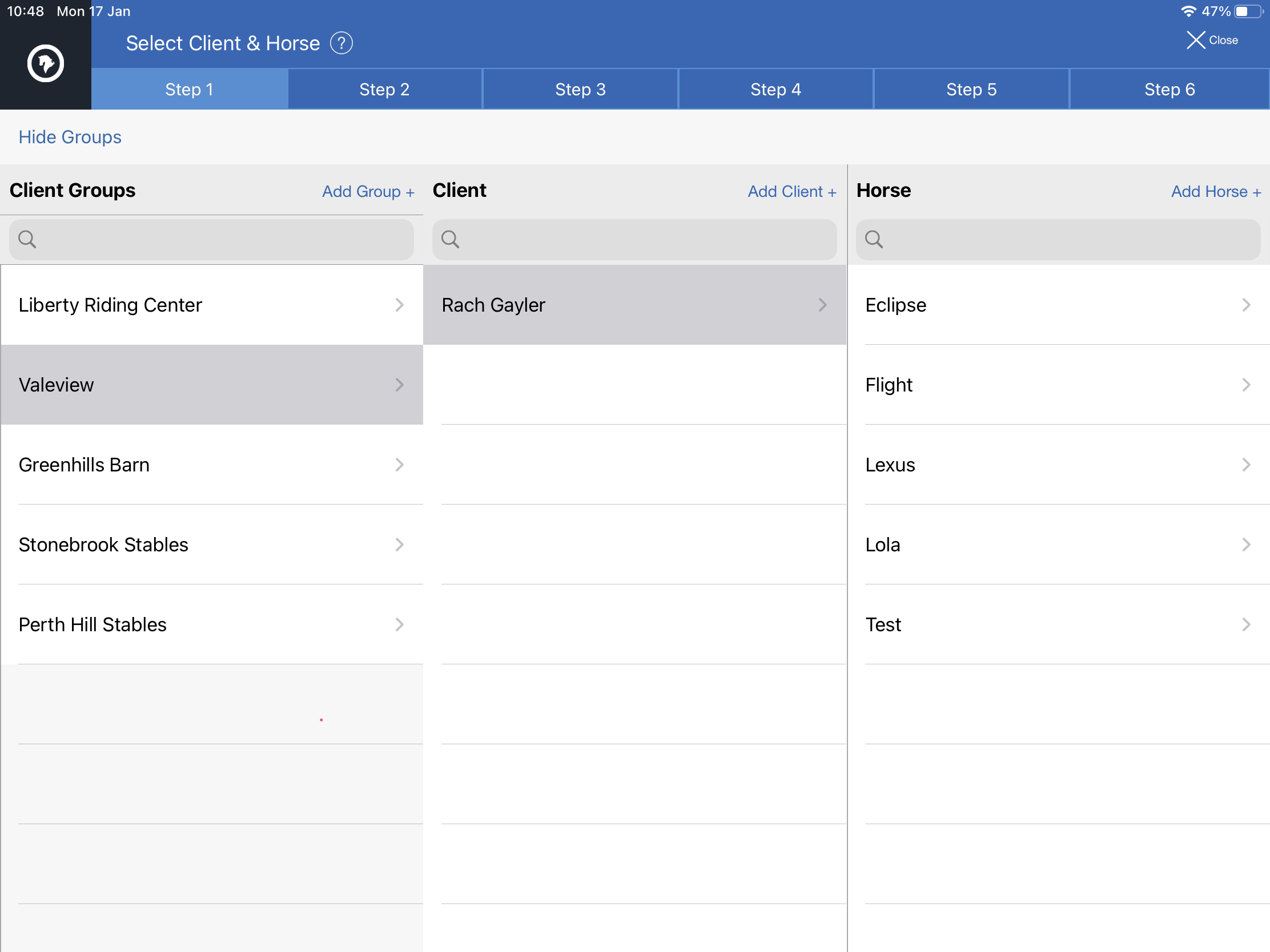
Clients can be added to groups. Each group includes full address and contact details entry.
- When adding a client tap the Group bar at the top on the record window and select a Group to add the Client.
- Clients can be added to multiple groups.
- When sending charts from the Chart Archive, you can filter and select charts under a Group and send these direct to the group contact email address, just tap 'group email' in the send popup.
8. Transfer Horse Record
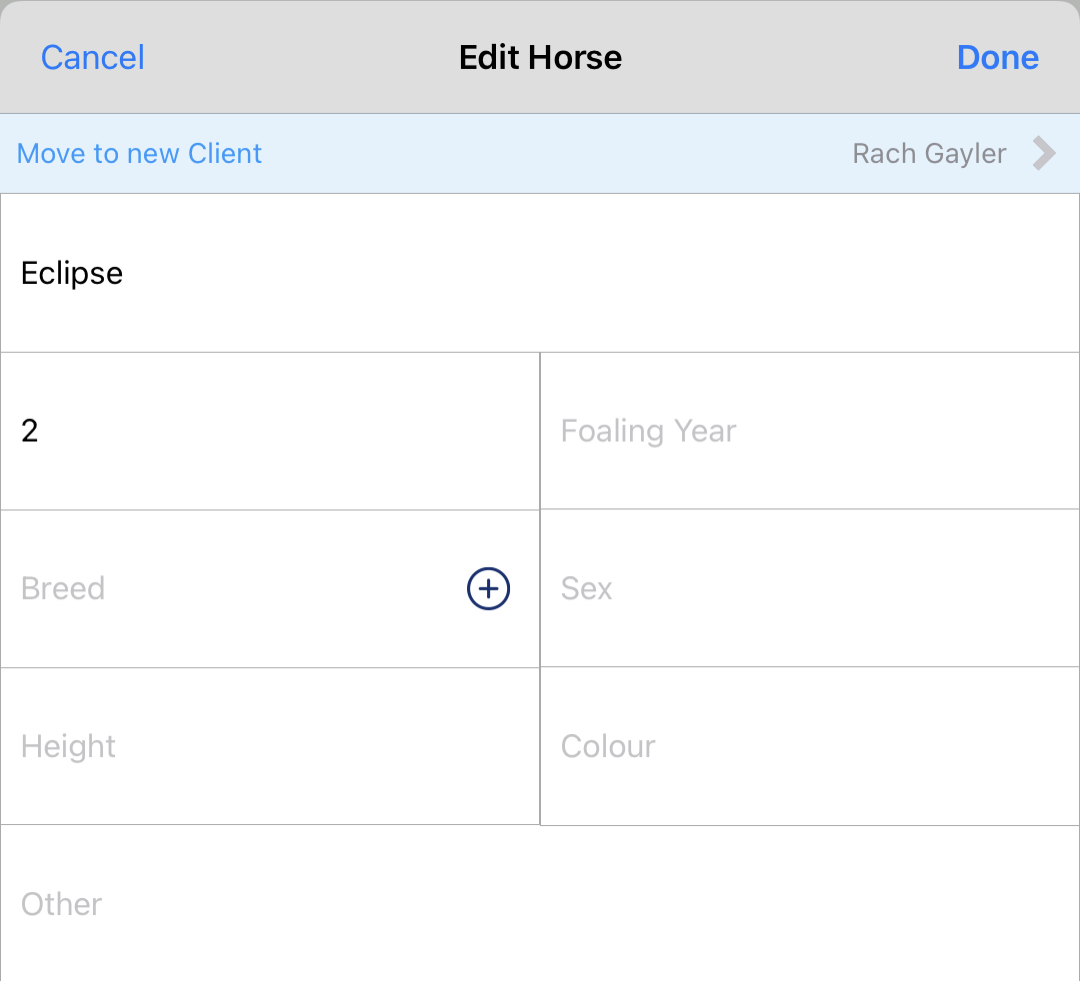
Horse records can now be transferred to a new client record. Open the horse record edit window. Tap the 'Move to new client' bar at the top and select a new client record.
You have the option to change previously created charts to show the new client details or to leave previous charts un-edited this will link the records and allow that horses records to be shown in previous charts view.
9. Hashed Fill
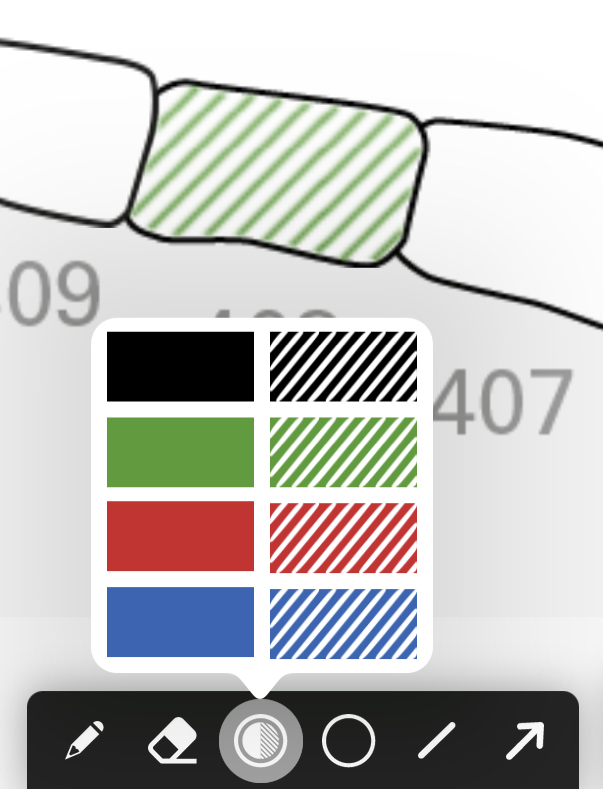
Improved Functions
1. More Severe Focal Overgrowths, also in Red
We have added an enlarged/more sever Focal Overgrowth images. Using the tool tap again to cycle through the small or large options.
Tap and hold the tool selector to choose red or black (default).
2. Four Additional Wave Options
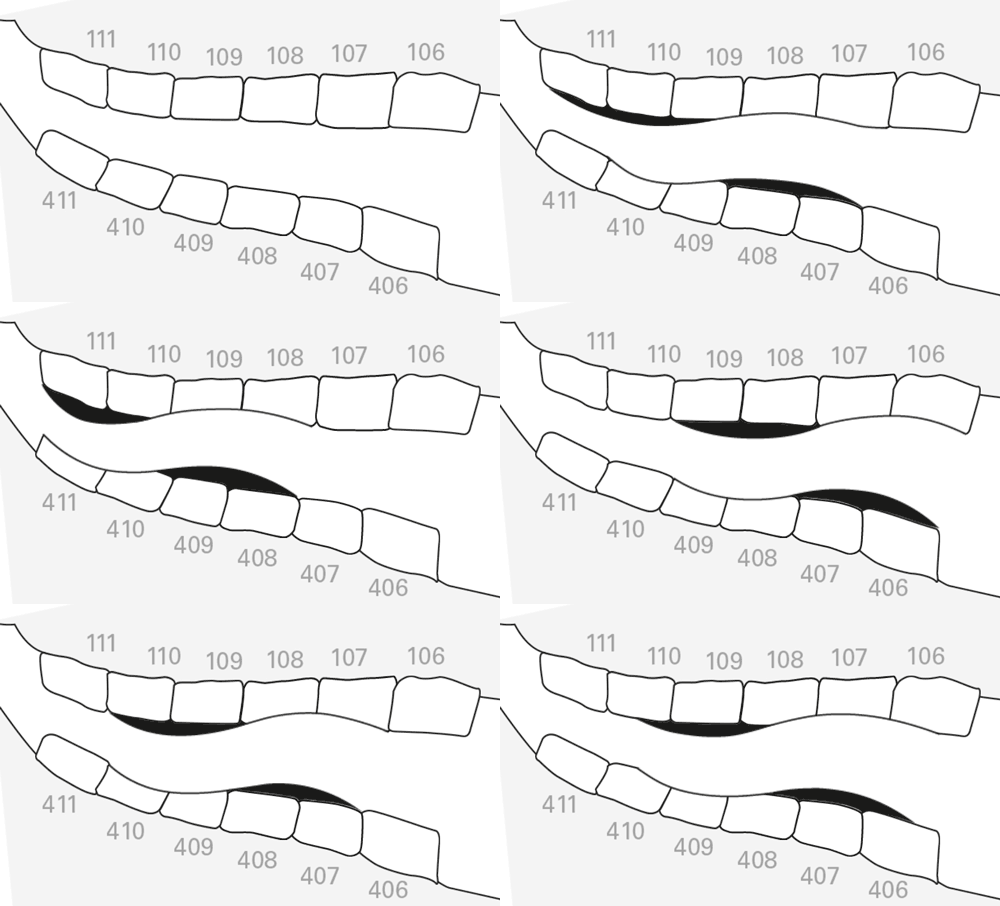
We've added 4 new wave images to give more variations to size and positions. Just tap the arcades to cycle through the different options or return to the default.
3. Rostral and caudal ATR/ETR Options
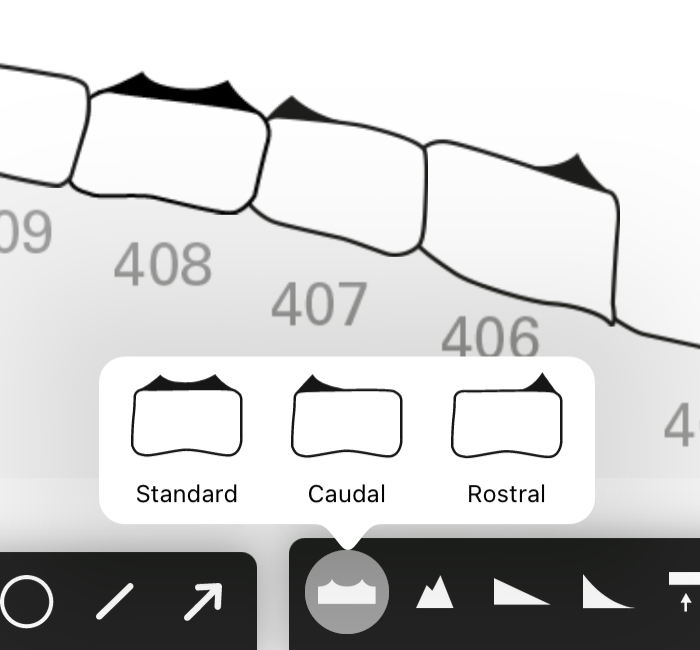
We ave added the Rostral and Caudal options to the ATR/ETR tool, just tap and hold to select Standard, Rostral or Caudal. Standard is selected by default.
4. Redesigned Attachment Management
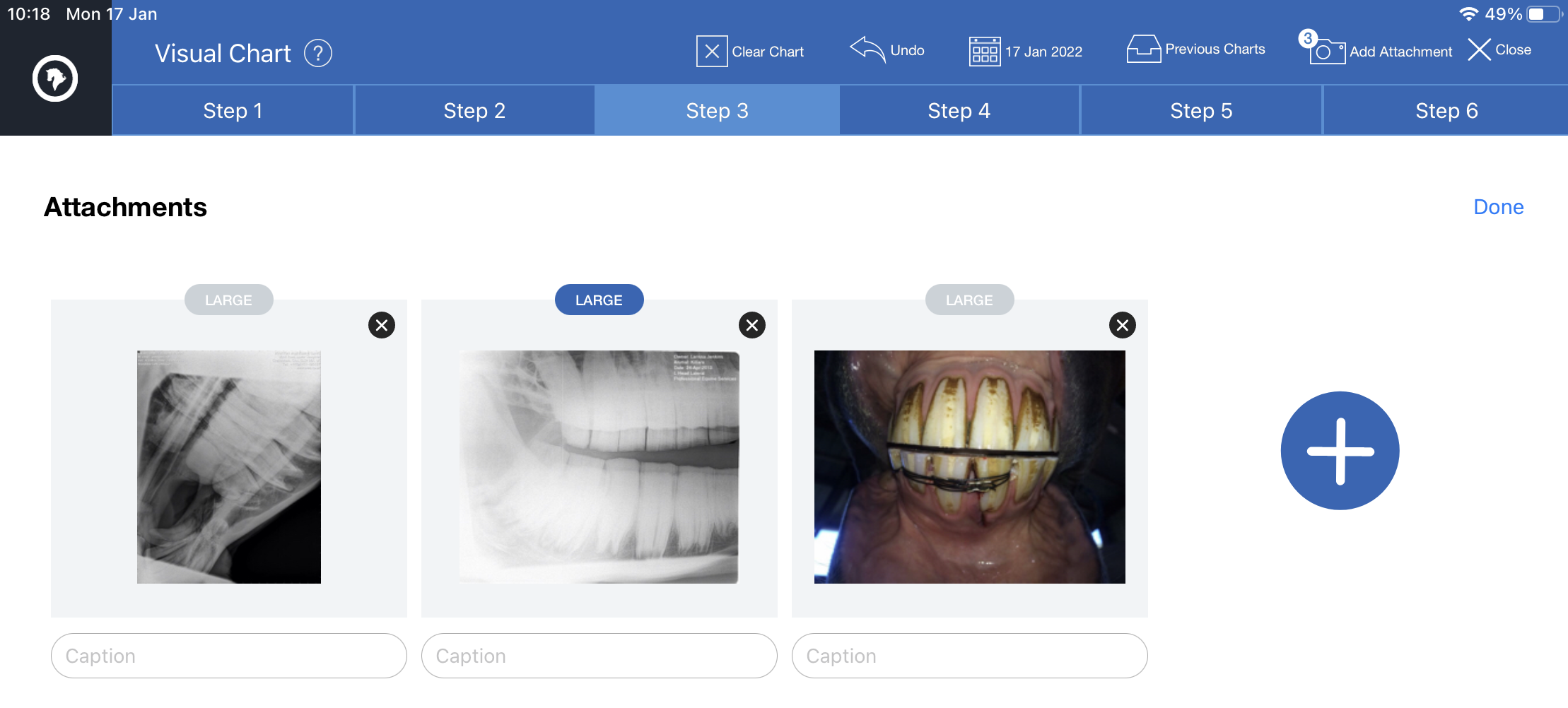
Attachments can now be added to the PDF chart as large or small (standard) images. It is also easy to select multiple from device gallery at once and add to the chart.
Captions can still be added to each image to annotate.
5. 18 & 24 Month Callback Periods
Two extra call back periods have been added to Step 6.
